
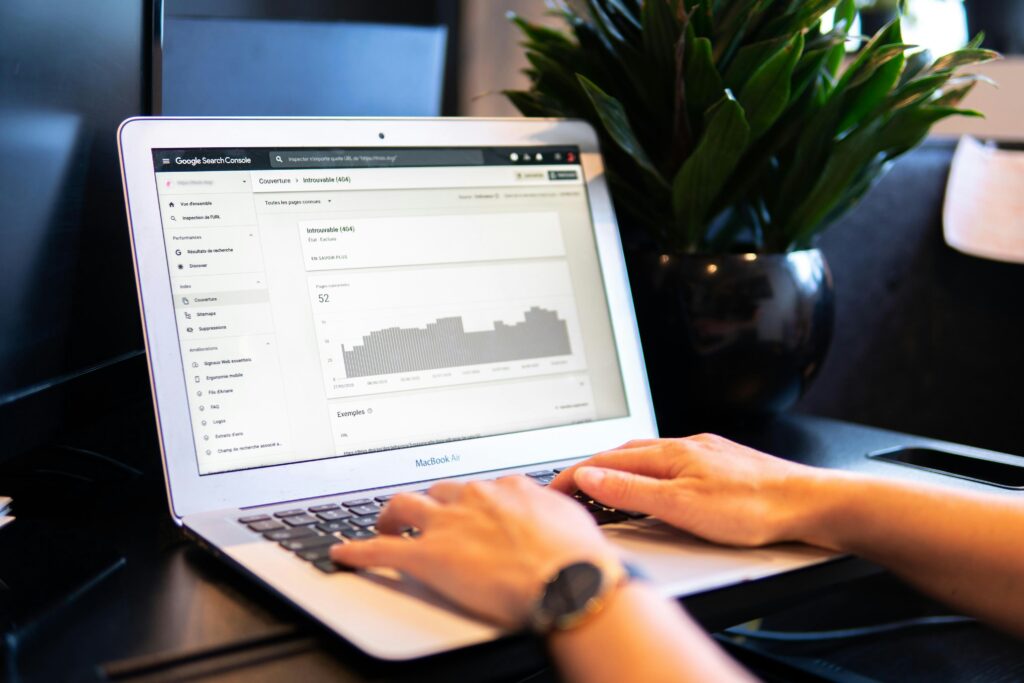
Have you published a WordPress page or blog post, submitted it to Google Search Console, and waited for Google to index it, only to discover that the page is still missing from search results?
You are not alone. Many WordPress website owners encounter indexing problems even when their websites appear to work normally. A page can load correctly, have no visible errors, and still remain outside Google’s index for weeks or months.
The confusing part is that Google Search Console reports several different indexing statuses. Some indicate that Google has discovered a URL but has not crawled it. Others mean that Google has crawled the page but decided not to index it. In other cases, a technical setting, incorrect canonical URL, redirect, or robots directive may be preventing indexing.
The right solution depends on the actual cause. Requesting indexing repeatedly will not fix a page that is blocked, duplicated, redirected, or considered insufficiently valuable to include in search results.
In this guide, you will learn how to diagnose WordPress indexing problems, understand the most common Google Search Console statuses, fix technical issues, and improve the chances that Google will index your important pages.
How to Check Whether Google Has Indexed a WordPress Page
Before changing your WordPress settings, confirm what Google is reporting about the affected URL.
The most useful starting point is Google Search Console.
Step 1: Open Google Search Console
Sign in to Google Search Console and select the correct website property.
Make sure you are checking the live website rather than a staging domain or another property. If you manage multiple WordPress websites, it is easy to inspect the wrong property by mistake.
Step 2: Inspect the Exact URL
At the top of Search Console, find the URL inspection field.
Enter the full URL of the affected page, including the correct protocol and domain. For example:
Google will show information about the URL based on the data available to Search Console.
Depending on the situation, you may see messages such as:
- URL is on Google
- URL is not on Google
- URL is unknown to Google
- Page is not indexed
- URL is available to Google but has indexing issues
These messages help you determine what to investigate next.
Step 3: Run a Live URL Test
If the URL is not indexed, select Test Live URL when the option is available.
The live test checks whether Google can currently access the page and identifies certain technical problems. However, a successful live test does not guarantee indexing. It shows that the page can potentially be accessed, not that Google has decided to include it in search results.
This distinction matters because indexing depends on more than whether a page loads correctly.
A page can be technically accessible but still remain unindexed because of duplication, content quality, internal linking, or other indexing decisions.
Step 4: Check the Page Indexing Report
Navigate to the Page indexing report in Search Console.
This report groups URLs by their indexing status and can help you identify patterns across your website.
For example, if one page is not indexed, the problem may be specific to that URL. If hundreds of pages have the same status, you should investigate shared settings, templates, internal linking, or sitemap configuration.
Do not assume that every URL excluded from the index is broken. Some exclusions are intentional, such as redirected URLs or pages marked with noindex.
What Do the Most Common Google Indexing Statuses Mean?
Understanding the exact status is essential before attempting a fix.
Discovered – Currently Not Indexed
This status means Google has discovered the URL but has not yet crawled it.
Google may know about the page through your XML sitemap, internal links, or other discovery sources. However, it has not necessarily downloaded and evaluated the page’s content.
Possible reasons include:
- The website has many URLs relative to its available crawling resources.
- The page has few or no internal links.
- The URL is relatively new.
- Google has not prioritized crawling the page.
- The site generates many low-value or duplicate URLs.
This status does not automatically indicate a technical error.
What to do: Check whether the page is included in your sitemap, link to it from a relevant indexed page, confirm that it is accessible, and review whether the website generates unnecessary URLs.
Then allow Google time to crawl it. Repeatedly submitting the same URL without addressing the underlying issue is unlikely to help.
Crawled – Currently Not Indexed
This status means Google has crawled the page but has not indexed it.
This is different from a page that Google has not visited. Google has already accessed the URL, but crawling has not resulted in inclusion in the index.
Possible reasons include:
- The page contains little original or useful information.
- The content substantially overlaps with another URL.
- The page provides limited value compared with similar pages.
- The canonical signals point to another URL.
- The page is part of a large collection of similar, low-value URLs.
There is no single cause that applies to every URL with this status.
What to do: Inspect the content, compare it with similar pages on your website, check the declared and Google-selected canonical URLs, and verify that the page offers a clear reason to appear in search results.
Adding more words is not automatically the solution. Improve the page by making it more useful, specific, accurate, and distinct from existing content.
Excluded by ‘noindex’ Tag
This status indicates that a noindex directive is preventing the page from being indexed.
The directive may be delivered through an HTML robots meta tag or an HTTP X-Robots-Tag response header.
In WordPress, a noindex setting may come from an SEO plugin, a site-wide search engine visibility setting, custom code, or a server configuration.
If the page should appear in Google, identify the source of the directive and remove it where appropriate.
If the page is intentionally excluded, such as a private utility page, you may not need to change anything.
Alternate Page With Proper Canonical Tag
This status generally means Google recognizes the URL as an alternate version of another page and accepts the canonical signal.
For example, two URLs might display substantially the same content, while one identifies the other as the preferred URL.
If the alternate URL is not supposed to be indexed separately, this may be expected behavior.
However, if the affected URL should be indexed independently, inspect the canonical tag and determine why it points elsewhere.
Duplicate Without User-Selected Canonical
Google considers the page a duplicate of another URL but has not identified a canonical URL specified by the site owner.
Google may select its own canonical version.
Check whether the page duplicates another URL, whether internal links point consistently to the preferred version, and whether your sitemap includes the correct URLs.
Page With Redirect
This status means the URL redirects to another destination.
Redirected URLs generally are not the versions Google indexes when the redirect is processed. Google may instead index the destination.
If you intentionally moved a page, this is usually expected.
If the page should load directly, inspect your WordPress redirect settings, server configuration, or redirect plugin.
Blocked by robots.txt
This status means Google’s crawler is blocked from accessing the URL by your robots.txt rules.
A robots.txt rule controls crawling, not indexing directly. A blocked URL can sometimes still appear in Google’s index if Google discovers it through other signals, although it may not have a normal indexed content representation.
If the page should be indexed, inspect the robots.txt file and remove the blocking rule if it is not intentional.
Do not block important pages simply to prevent them from appearing in search results. Use the appropriate indexing controls instead.
1. Check Whether WordPress Is Blocking Search Engines
One of the first things to check is WordPress’s built-in search engine visibility setting.
It is particularly important if you recently migrated a website, launched a redesign, or moved from staging to production.
Check the Search Engine Visibility Setting
In your WordPress dashboard:
- Navigate to Settings → Reading.
- Find the Search engine visibility option.
- Check whether the option labeled Discourage search engines from indexing this site is selected.
- If the live website should be indexed, make sure the option is unchecked.
- Save the changes if you made an adjustment.
This setting is intended to discourage search engines from indexing the website. It is not a reliable security or privacy mechanism.
If it was enabled during development and left enabled after launch, it may explain why important pages are not being indexed as expected.
However, changing this setting does not guarantee immediate indexing. You should still inspect the affected URLs in Search Console and check whether other restrictions remain.
2. Check Your SEO Plugin’s Robots Settings
WordPress SEO plugins provide controls for indexing individual pages and groups of content.
For example, Yoast SEO and Rank Math allow you to configure robots directives for individual pages and certain content types.
A page may be excluded from indexing even when the global WordPress visibility setting is correct.
Check an Individual Page
Edit the affected post or page and open the SEO plugin’s settings.
Look for the advanced robots settings and check whether the page is set to noindex.
If you want the page to appear in search results, it should normally allow indexing unless there is another deliberate reason to exclude it.
Also check the page’s canonical URL and make sure it points to the intended version.
Check Global Robots Settings
If many pages are affected, inspect the global settings for posts, pages, categories, tags, and custom post types.
For example, an SEO plugin may be configured to noindex an entire content type. If your important landing pages belong to that content type, they may all be excluded.
Be careful when changing global settings. You should not automatically index every archive, tag, or utility page. Some may be better excluded because they create duplicate or low-value content.
If you use Rank Math, review the relevant Titles & Meta and robots settings. If you use Yoast SEO, check the search appearance settings and the advanced settings for individual content.
After making a change, inspect the rendered page source or use a suitable SEO inspection tool to confirm that the intended robots directive is present.
3. Check Your Robots.txt File
Your robots.txt file provides instructions to compliant crawlers about which paths they may access.
A rule that blocks an important section of your website can prevent Google from crawling pages in that section.
For example, a rule that blocks an entire directory may be appropriate for some private or non-public paths but harmful if your actual content lives there.
To investigate:
- Open your website’s
/robots.txtURL. - Review the rules for Googlebot and other user agents.
- Look for
Disallowrules that match the affected page. - Check whether the rule is intentional.
- If necessary, update the robots.txt configuration through the component that manages it.
Depending on your setup, the file may be served from your hosting environment, managed by a plugin, or generated through another configuration layer.
Do not copy a robots.txt file from another website without understanding its rules. A rule that is suitable for one site may block important content on another.
Also remember that robots.txt is not the same as noindex. If Google must read a page’s noindex directive, the crawler generally needs to be able to access that page.
4. Fix Incorrect Canonical URLs
Canonical tags tell search engines which URL is preferred when multiple URLs contain duplicate or substantially similar content.
For example, you might have:
https://example.com/service/https://example.com/service/?source=newsletter
Depending on how the site is configured, both URLs might lead to the same underlying content. The preferred canonical URL would usually be the clean version without the tracking parameter.
Problems arise when a page’s canonical tag points to an unrelated page, a staging domain, an outdated URL, or a URL that redirects elsewhere.
How to Check a Canonical Tag
Open the affected page in your browser and inspect the HTML source.
Look for a canonical link element similar to:
<link rel="canonical" href="https://example.com/desired-page/" />
The URL in the href attribute should match the preferred version of the page.
You can also use URL Inspection in Google Search Console to compare the user-declared canonical with Google’s selected canonical, when that information is available.
If the canonical is incorrect, investigate the SEO plugin settings, custom theme code, or plugins that modify canonical URLs.
Do not change canonical tags simply because a page is not indexed. First determine whether Google is treating the URL as a duplicate and whether the canonical destination is correct.
If the page contains genuinely distinct content and should be indexed independently, it should generally have a canonical that reflects that intended URL.
5. Improve Internal Linking to Important Pages
Google discovers URLs through several sources, including links from other pages.
A page that is included in a sitemap but has no meaningful internal links may be harder for search engines and visitors to discover in the context of your website.
This is particularly relevant for blog posts, service pages, and landing pages that are published but never linked from existing content.
Link to the Page From Relevant Content
Find existing pages that discuss the same subject and add a natural link to the page you want Google to discover.
For example, if you publish a detailed guide about WooCommerce variable products, you could link to it from a broader WooCommerce tutorial or a related article about managing an online store.
Use descriptive anchor text that explains what the linked page covers.
Avoid adding dozens of irrelevant links simply to increase the number of internal links. The goal is to help visitors navigate related information and establish a sensible content structure.
Check Your Navigation and Category Pages
Important pages should be reachable through a logical site structure.
Depending on the purpose of the page, useful links may come from:
- Relevant blog posts
- Product or service pages
- Category pages
- Main navigation
- Contextual resource pages
Not every article needs to appear in the main menu. A few relevant contextual links can be more useful than adding every URL to navigation.
For more ideas on building organic visibility, see our guide to getting more traffic to your WordPress website.
6. Improve Content That Google Has Crawled but Not Indexed
If Google has crawled a page but has not indexed it, technical checks alone may not solve the problem.
The page may not provide enough distinct value compared with other content available to Google.
This does not mean that Google has a simple word-count threshold. A short page can be useful and indexable, while a long article can remain unindexed if it repeats information without answering the searcher’s needs.
Make the Page More Useful and Specific
Review the page from the perspective of someone searching for its topic.
Ask yourself:
- Does the page answer a specific question or solve a clear problem?
- Does it contain information that is meaningfully different from your other pages?
- Are the instructions accurate and practical?
- Does it cover the important parts of the topic without unnecessary repetition?
- Does the title accurately describe what readers will find?
- Is the page useful enough to deserve a place in search results?
For a troubleshooting article, include the symptoms, likely causes, diagnostic steps, and appropriate fixes.
For a service page, explain the service, its benefits, who it is for, and what the customer can expect.
For a product page, provide original descriptions, accurate specifications, and information that helps customers make a decision.
Check for Keyword Cannibalization and Overlap
If several pages target almost the same search intent, they may overlap substantially.
For example, publishing multiple articles that explain the same basic WordPress speed fixes may create a collection of pages that are difficult to distinguish.
Review your existing content before writing more.
If two pages genuinely serve different purposes, clarify their scope and link them appropriately. If one page is redundant, consider consolidating the useful information into a stronger page and redirecting the retired URL when appropriate.
Do not merge pages automatically just because they share a keyword. The decision should depend on their content, search intent, and purpose.
7. Check Your XML Sitemap
An XML sitemap helps search engines discover URLs that you want them to consider for crawling.
It does not force Google to crawl or index every URL included in the file.
If an important WordPress page is not being indexed, confirm that it is included in the correct sitemap and that the sitemap is accessible.
What to Check
- Open the sitemap URL generated by your SEO plugin.
- Confirm that the sitemap loads correctly.
- Find the affected page, if it should be included.
- Check whether the URL uses the correct HTTPS and domain version.
- Confirm that the page does not redirect to another URL.
- Verify that the page is not intentionally marked
noindex.
WordPress SEO plugins often generate a sitemap index that links to separate sitemaps for posts, pages, products, or other content types.
If a page is missing, check the relevant content-type settings in your SEO plugin. The page may be excluded because of its post type, robots settings, or plugin configuration.
After correcting the sitemap, submit the sitemap index in Search Console if necessary.
Submitting it again is not a substitute for fixing a blocked URL, incorrect canonical, or weak content. Treat the sitemap as a discovery tool, not an indexing guarantee.
8. Check Whether the Page Returns the Correct HTTP Status
Google cannot reliably index a page as intended if the URL returns an unexpected response.
A page that appears normal in your browser may still return a redirect, an error status, or different responses under certain conditions.
Check the affected URL using URL Inspection, browser developer tools, or an HTTP status checker.
For a normal, indexable page, you generally want the URL to return a successful HTTP response, typically 200 OK.
Investigate cases where the page returns:
404 Not Foundwhen it should exist5xxserver errors- An unexpected redirect
- A redirect loop
- A response that differs between visitors and crawlers
If a page was permanently moved, a relevant 301 redirect is usually appropriate. The destination should be the closest relevant replacement, not automatically the home page.
If your WordPress website has server errors, resolve those first. Our guide to the 500 Internal Server Error in WordPress explains common causes and troubleshooting steps.
Also check whether a security plugin, firewall, CDN, or hosting protection system is blocking legitimate Googlebot requests. Do not assume every bot-related request is genuine; verify the crawler before changing security settings.
9. Check for Duplicate URLs and WordPress URL Variations
WordPress websites can expose similar content through multiple URL patterns, depending on permalink settings, plugins, tracking parameters, pagination, filters, and other features.
If several URLs lead to essentially the same content, Google may choose one version for indexing rather than index them all separately.
Review whether the affected page has alternatives such as:
- URLs with and without trailing slashes
- HTTP and HTTPS versions
- www and non-www versions
- URLs with tracking parameters
- Duplicate category or archive paths
- Similar URLs created by filters or plugins
Your website should use a consistent preferred URL structure.
Make sure internal links, canonical tags, redirects, and sitemap entries agree on the intended version.
Do not create redirects for every URL variation without testing the impact. Some parameters are required for functionality, and some pages may legitimately need separate URLs.
If you have recently moved your site or changed its domain, review the process carefully. Our guide to moving WordPress to a new host covers important migration considerations.
10. Check Whether Google Can Render the Page Properly
Some WordPress pages rely heavily on JavaScript, dynamic content, or third-party scripts.
Google can render many JavaScript-based experiences, but rendering may introduce additional complexity. Important content should not depend on a setup that prevents Google from accessing or rendering it correctly.
If the page appears empty or incomplete in search previews, inspect it with URL Inspection and review the available rendered-page information.
Check whether important content is available in the page’s HTML or becomes available through accessible rendering. Also review blocked resources, JavaScript errors, and security restrictions that could prevent the page from loading as intended.
For pages built with Elementor or another page builder, confirm that the actual published page contains the intended content and is not merely correct inside the editor.
Do not assume that using a page builder automatically creates an indexing problem. Focus on the specific URL and evidence from Google’s inspection tools.
11. Check Whether Your Website Is New or Has Many Low-Value URLs
A newly launched website may not have established crawling patterns, many internal links, or a substantial amount of content.
Google may discover and index some pages before others. This is not necessarily a sign that something is broken.
Larger websites can face a different problem: they may expose many URLs that offer little unique value, including empty archives, filter combinations, duplicate pages, and automatically generated content.
In either situation, prioritize the URLs that matter most.
Make sure your most important pages are linked from relevant areas of the site, return the correct HTTP status, and provide useful, distinct content.
Avoid creating large numbers of nearly identical pages solely to target small keyword variations. More URLs do not automatically mean more organic traffic.
For a new website, focus on technical accessibility, useful content, a logical site structure, and consistent publication rather than repeatedly submitting every URL for indexing.
12. Request Indexing After Fixing the Problem
Once you have addressed the underlying issue, use URL Inspection in Google Search Console to request indexing when appropriate.
The process is straightforward:
- Open Search Console.
- Enter the full URL in the inspection field.
- Run a live URL test if needed.
- Confirm that the page is accessible and that no unintended indexing restrictions remain.
- Select Request Indexing if the option is available.
Google may queue the URL for processing, but this does not guarantee that it will be indexed. Processing can take time, and repeated requests for the same URL do not necessarily speed it up.
For a large number of URLs, fix the shared issue first and ensure that the sitemap and internal linking are correct. Do not try to request indexing for every URL individually when the underlying problem affects the whole website.
After requesting indexing, check Search Console again later. If the status remains unchanged, review the evidence and continue investigating rather than repeatedly submitting the same URL.
A Practical WordPress Indexing Troubleshooting Checklist
If you want a clear order of operations, use this checklist whenever an important page is not indexed.
- Inspect the exact URL in Search Console. Record the current status and any canonical information.
- Run a live URL test. Check whether Google can access the page now.
- Check WordPress Reading settings. Confirm that search engine visibility is configured correctly for the live site.
- Review SEO plugin settings. Check
noindex, canonical URLs, and content-type settings. - Inspect robots.txt. Confirm that important pages are not unintentionally blocked.
- Check HTTP status and redirects. Make sure the page returns the intended response.
- Verify the sitemap. Confirm that the preferred URL is included when appropriate.
- Review internal links. Add relevant links from existing pages.
- Evaluate the content. Improve usefulness, originality, and alignment with search intent.
- Request indexing when appropriate. Then monitor the result rather than submitting the URL repeatedly.
If multiple URLs share the same problem, look for a common cause. A global noindex setting, an incorrect canonical template, or a robots.txt rule can affect many pages at once.
Final Thoughts
When WordPress pages are not indexed by Google, the first step is to identify the actual reason. A page that has not been crawled needs a different response from one that has been crawled but not indexed. A canonical issue requires a different fix from a page blocked by noindex or robots.txt.
Start with Google Search Console, inspect the exact URL, and verify the technical basics. Then review internal linking, content quality, duplication, and the overall structure of your website.
Remember that successful crawling does not guarantee indexing, and requesting indexing does not guarantee inclusion in search results. The goal is to make important pages accessible, technically consistent, and useful enough to deserve indexing.
If you want to learn more about WordPress hosting, performance optimization, security, SEO, WooCommerce, and website maintenance, the WP Flow Mastery WordPress eBook brings these topics together in one practical guide of more than 160 pages. It is designed for WordPress developers, freelancers, and website owners who want to understand and manage their websites more effectively.
Written by Nemanja Stosic
WordPress Developer & Website Optimization Specialist
Nemanja has worked on more than 200 websites and focuses on WordPress development, performance optimization, SEO, security, WooCommerce, and practical website improvements.