
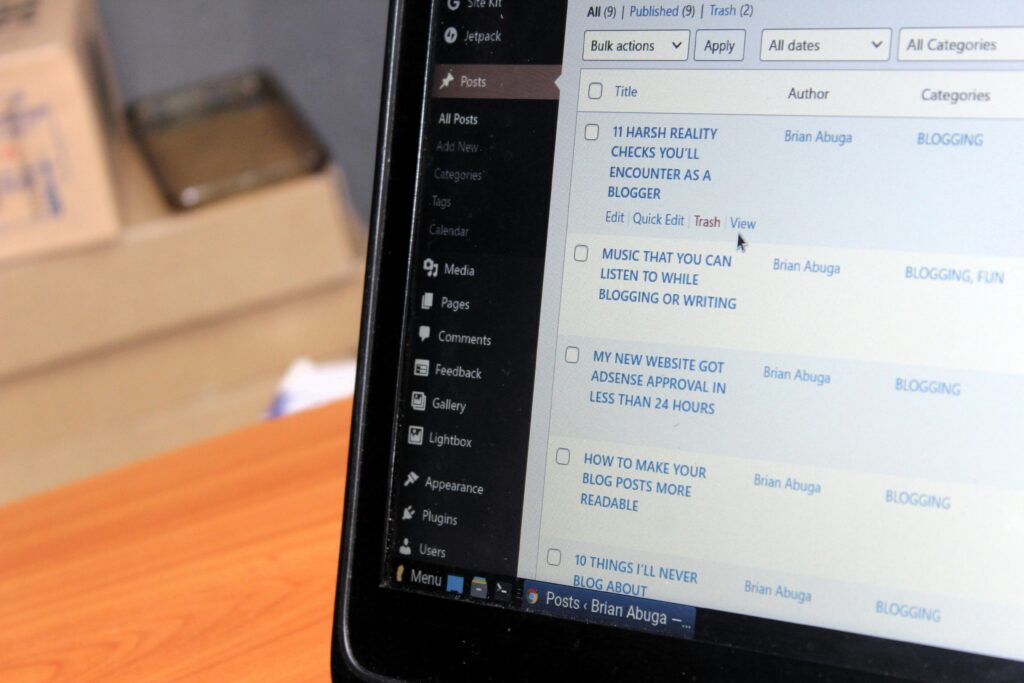
Is your WordPress admin slow even though your website loads relatively quickly for visitors?
A slow WordPress dashboard can make everyday website management unnecessarily frustrating. Opening Posts may take several seconds, the Media Library can feel sluggish, WooCommerce pages may take a long time to load, or clicking Save, Update, or Publish can leave you waiting.
The problem is particularly confusing when the frontend of the website appears to be fast.
A WordPress website can have a fast homepage and still have a slow admin dashboard because visitors and administrators use WordPress differently. Frontend pages can benefit from page caching, CDNs, optimized images, and browser caching, while the WordPress admin relies heavily on PHP processing, database queries, plugins, AJAX requests, scheduled tasks, and external services.
The good news is that a slow WordPress admin can usually be investigated systematically.
In this guide, you’ll learn why the WordPress admin becomes slow, how to identify the cause, how to troubleshoot the dashboard, and what you can do to improve WordPress admin performance without making unnecessary changes.
Why Is My WordPress Admin So Slow?
There isn’t one single reason why the WordPress dashboard becomes slow.
The problem can come from your hosting environment, plugins, database, theme, custom code, WooCommerce, scheduled tasks, external API requests, or a combination of several factors.
Some of the most common causes of a slow WordPress admin include:
- Resource-heavy plugins
- Plugin conflicts
- Poor-quality or inefficient custom code
- Slow hosting
- Limited PHP workers
- High CPU or memory usage
- Large or inefficient database queries
- Excessive WordPress Heartbeat requests
- Too many scheduled cron tasks
- WooCommerce background processes
- External API requests
- Large media libraries
- Outdated PHP
- Outdated plugins or themes
- Database tables created by old plugins
- Excessive revisions and temporary data
The first goal should not be to optimize everything.
Instead, find out what is actually slowing the dashboard down.
That will usually save much more time than randomly changing WordPress settings.
WordPress Admin Slow but Website Fast: What’s the Difference?
One of the most common questions is:
Why is my WordPress admin slow if my website is fast?
The answer is that the frontend and backend perform different types of work.
When a visitor opens a cached page, the server may be able to return a previously generated version of that page without running all of the WordPress processes again.
The WordPress admin is different.
When you open an administrative page, WordPress may need to:
- Execute PHP code.
- Query the database.
- Load active plugins.
- Run theme functionality.
- Process user-specific information.
- Make AJAX requests.
- Run background processes.
- Communicate with external services.
This means a performance test showing a fast homepage does not necessarily tell you anything about the speed of your WordPress dashboard.
You need to investigate the admin area separately.
1. Check Your WordPress Hosting First
Your hosting environment is one of the first things to investigate when the WordPress admin becomes slow.
Every WordPress request requires server resources.
If your hosting account is reaching its limits, the dashboard can become slow even if your website does not contain an obvious problem.
Check whether your hosting provider gives you information about:
- CPU usage
- RAM usage
- PHP workers
- Entry processes
- Disk usage
- Database resources
- Server response time
- Account resource limits
If CPU or memory usage is consistently high, WordPress may simply not have enough resources to process requests quickly.
Why PHP Workers Matter
PHP workers process dynamic PHP requests.
If all available workers are occupied, additional requests may have to wait.
This can become noticeable when you have:
- WooCommerce
- Elementor
- Multiple plugins
- Logged-in users
- Frequent AJAX requests
- Background processes
- A high number of simultaneous requests
If your hosting plan provides only a small number of PHP workers, increasing resources or moving to a better hosting environment may improve performance.
This is also why hosting should be considered when troubleshooting WordPress performance rather than focusing exclusively on plugins.
If your current hosting environment is causing problems, see our guide on moving WordPress to a new host.
2. Test Whether a Plugin Is Making WordPress Admin Slow
Plugins are one of the most common things to investigate.
A plugin can add functionality to WordPress administrative pages and increase the amount of work required to load them.
For example, a plugin might:
- Run database queries.
- Load JavaScript.
- Add AJAX requests.
- Check an external API.
- Generate reports.
- Process background tasks.
- Add custom dashboard widgets.
- Scan files.
- Analyze content.
- Process WooCommerce data.
You may therefore notice that the dashboard became slower after installing a particular plugin.
However, don’t assume that the number of plugins is the problem.
Does Having Too Many Plugins Make WordPress Slow?
Not necessarily.
The number of active plugins is not a reliable performance measurement by itself.
A small number of poorly optimized plugins can create more problems than a larger number of well-developed plugins.
What matters is what those plugins are doing.
A plugin that performs one lightweight task may have almost no noticeable impact, while another plugin may perform hundreds of database queries or background operations.
How to Test Plugins
If you suspect a plugin, create a backup and test the website carefully.
Deactivate non-essential plugins and check whether the WordPress admin becomes faster.
If the problem disappears, reactivate plugins individually.
When the dashboard becomes slow again, you have a strong indication of where the problem is coming from.
For more detailed troubleshooting, Query Monitor can help identify slow database queries, PHP errors, HTTP requests, hooks, and other information.
3. Look for Plugin Conflicts
Sometimes the problem is not that one plugin is inherently slow.
The problem can be a conflict between plugins.
For example, two plugins may modify the same WordPress functionality, add competing scripts, make repeated requests, or interact with the same database data.
A plugin conflict can appear after:
- A plugin update
- A WordPress update
- A PHP update
- Installing another plugin
- Changing a theme
- Adding a WooCommerce extension
If the WordPress admin suddenly became slow after a specific change, investigate that change first.
This is one of the most useful troubleshooting principles in WordPress:
If something changed immediately before the problem appeared, start there.
4. Use Query Monitor to Find Slow Database Queries
If the WordPress dashboard is still slow after testing plugins, look at what WordPress is actually doing during the request.
Query Monitor is a popular debugging tool that can provide information about:
- Database queries
- Slow queries
- PHP errors
- HTTP requests
- Hooks and actions
- Scripts and styles
- Duplicate queries
You don’t need to be a developer to understand the basic idea.
If an admin page takes several seconds to load and one plugin is responsible for a large number of slow queries, you have a much clearer direction for troubleshooting.
This is far more useful than simply installing another performance plugin and hoping it fixes the problem.
5. Optimize Your WordPress Database
The WordPress database stores a large amount of information.
Over time, websites can accumulate:
- Post revisions
- Auto-drafts
- Spam comments
- Transients
- Plugin data
- WooCommerce data
- Metadata
- Logs
- Unused options
Some plugins also create their own database tables.
A database with a lot of data isn’t automatically a problem. WordPress can handle large databases.
The bigger issue is inefficient queries and unnecessary data that particular plugins repeatedly process.
Should You Clean Your WordPress Database?
Database cleanup can help, but it should be done carefully.
Always create a backup before making database changes.
Avoid deleting database tables or options simply because you don’t recognize them.
A plugin may have stored important settings or data there.
If you want to optimize the database, first determine what is actually unnecessary.
This is especially important on WooCommerce websites where orders, customers, products, and other information can be critical.
For websites experiencing database-related errors, our guide on Error Establishing a Database Connection covers a different but related area of WordPress database troubleshooting.
6. Check WordPress Heartbeat
WordPress Heartbeat is a background communication system used by WordPress.
It allows the browser to periodically communicate with the server while you are working in the dashboard.
Heartbeat supports features such as:
- Autosaving
- Post locking
- Session-related functionality
- Certain plugin features
Heartbeat is useful, but it can also create additional requests.
On a resource-limited website, frequent requests can contribute to server load.
This can be more noticeable when:
- Several administrators are logged in.
- WooCommerce is installed.
- Many plugins are active.
- The hosting account has limited resources.
- Other AJAX requests are already running.
Should You Disable WordPress Heartbeat?
Usually, don’t disable it blindly.
If you identify Heartbeat as part of the problem, you can consider reducing its frequency or limiting it on specific admin pages.
The goal should be to reduce unnecessary activity without breaking functionality that depends on Heartbeat.
7. Check WP-Cron and Scheduled Tasks
WordPress uses WP-Cron to run scheduled tasks.
Plugins can use it for:
- Sending emails
- Publishing scheduled content
- Cleaning temporary data
- Running maintenance tasks
- Processing integrations
- Updating information
- WooCommerce actions
On websites with many plugins, scheduled tasks can accumulate.
A plugin may create a task that runs every few minutes, while another plugin may create several more.
If these tasks are poorly configured or resource-intensive, they can consume server resources.
WooCommerce Scheduled Actions
WooCommerce uses scheduled actions for various background processes.
If a WooCommerce website has a large number of pending scheduled actions, investigate why they are accumulating.
The cause could be:
- A failed task
- A plugin integration
- An external service
- Insufficient server resources
- A large amount of store activity
Fixing the underlying problem is more useful than simply deleting scheduled tasks.
8. External API Requests Can Slow WordPress Admin
Some plugins communicate with external servers.
For example:
- SEO plugins may connect to external services.
- Email plugins may communicate with email providers.
- Translation plugins may contact translation services.
- License systems may check activation servers.
- Analytics plugins may retrieve data.
- Security plugins may perform external checks.
If an external server responds slowly, your WordPress admin page may wait for that response.
This can create a strange situation where your server itself is working normally but the dashboard still feels slow.
If only one particular admin screen is slow, check whether that page uses external HTTP requests.
9. WooCommerce Can Make the Dashboard Slower
WooCommerce adds considerably more functionality to WordPress.
A WooCommerce dashboard can contain:
- Orders
- Products
- Customers
- Coupons
- Inventory
- Analytics
- Reports
- Payment integrations
- Shipping integrations
- Tax calculations
- Scheduled actions
A small WooCommerce store may perform perfectly well.
As the store grows, however, database activity and background processing can increase.
If the WooCommerce admin is slow, look specifically at:
- Database queries
- Scheduled actions
- WooCommerce extensions
- Payment integrations
- Shipping integrations
- Product count
- Order volume
- Hosting resources
Don’t automatically assume that WooCommerce itself needs to be removed or replaced.
The goal is to identify what part of the WooCommerce environment is creating the additional workload.
10. Large Product and Post Databases Can Affect Admin Performance
The more content your WordPress website contains, the more data some admin screens have to process.
For example, the Posts screen may contain thousands of entries.
WooCommerce product screens may contain hundreds or thousands of products.
The Media Library can also become difficult to manage on large websites.
This does not mean you should delete old content.
Instead, investigate which admin screens are slow and what queries they are performing.
If the slowdown only appears when opening a specific list or filter, the problem may be related to how that page queries the database.
11. Check Your WordPress Theme
Themes are usually associated with frontend design, but they can also add administrative functionality.
A theme can add:
- Custom post types
- Theme settings
- Admin widgets
- Custom fields
- AJAX functionality
- Database queries
If your admin became slow after switching themes, test whether the theme is contributing to the problem.
For websites using custom themes or heavily customized frameworks, this can be particularly important.
12. Check Custom Code and Functions.php
Custom code can also slow down the WordPress admin.
For example, a custom function might execute a database query on every admin page.
Another snippet might make an external request whenever a post is saved.
Poorly written admin functionality can therefore affect every administrator.
Check recent changes to:
functions.php- Custom plugins
- Code snippets
- MU plugins
- Theme functionality
If the slowdown started after adding custom code, temporarily removing that code from the test environment can help confirm whether it is responsible.
13. Keep PHP Updated
The PHP version used by your hosting environment affects WordPress performance.
Older PHP versions can be slower and may eventually become unsupported by WordPress plugins and themes.
Check which PHP version your website is using and whether your hosting provider supports a newer compatible version.
Before upgrading PHP:
- Create a backup.
- Check plugin compatibility.
- Check theme compatibility.
- Test the website.
- Update outdated components where necessary.
Don’t upgrade PHP blindly on a production website with old plugins.
Compatibility matters as much as the potential performance improvement.
14. Keep WordPress, Plugins and Themes Updated
Updates can include:
- Bug fixes
- Security improvements
- Compatibility fixes
- Performance improvements
Running old versions of WordPress or plugins can create unexpected behavior.
This doesn’t mean you should update everything without testing.
A safer maintenance process is:
Backup → Update → Test → Monitor
Pay particular attention to major updates involving WooCommerce, page builders, themes, and PHP.
If your website experiences problems after an update, you can investigate the change rather than assuming that the update itself is universally responsible.
15. Don’t Install Another Caching Plugin Just Because the Admin Is Slow
This is a common mistake.
Caching can significantly improve frontend performance.
However, most page caching systems are designed primarily for visitors who are not logged in.
The WordPress dashboard is dynamic and user-specific.
Therefore, a page-cache plugin is not necessarily going to fix a slow Posts screen, WooCommerce dashboard, or Plugin page.
If your frontend is slow, investigate caching, images, CDN configuration, JavaScript, CSS, and server response time.
If your WordPress admin is slow, investigate the backend separately.
16. Check Your Browser and Extensions
Not every slow WordPress dashboard problem is caused by the server.
Your browser can also contribute.
Try opening the WordPress admin in:
- Incognito/private mode
- Another browser
- A different computer
Also temporarily disable browser extensions.
This is particularly useful if the dashboard is slow only on one computer.
If WordPress is fast in another browser, investigate your local browser environment before changing the server configuration.
17. Check Your Internet Connection
This sounds obvious, but it is worth ruling out.
If every website and web application feels slow on the same connection, WordPress may not be the problem.
Test the dashboard from another connection if possible.
This is especially useful when the WordPress admin is slow only for you while other administrators report normal performance.
18. Check Whether Security Plugins Are Scanning the Site
Security plugins can perform resource-intensive operations.
Depending on the configuration, they may:
- Scan files
- Monitor login attempts
- Check changes
- Compare files
- Run scheduled scans
- Monitor traffic
A security scan running at the same time as normal admin activity can temporarily increase server load.
If the dashboard becomes slow at regular intervals, check whether a scheduled security scan or other background process runs at that time.
The solution isn’t necessarily to remove the security plugin.
Instead, check its configuration and resource usage.
19. Check the WordPress Media Library
A large Media Library can also make certain admin pages slower.
This can happen when a website contains:
- Thousands of images
- Many image sizes
- Large uploads
- Image optimization plugins
- External image processing
- Large numbers of attachments
Image optimization is important for frontend performance, but the admin also has to manage the underlying media records.
If the Media Library is the only area that feels slow, investigate it separately rather than treating the entire WordPress installation as slow.
20. Identify When the Dashboard Became Slow
This is one of the simplest and most effective troubleshooting steps.
Ask:
When did the problem start?
If the admin was fast last month and suddenly became slow this week, something probably changed.
Possible changes include:
- Plugin installation
- Plugin update
- WordPress update
- PHP update
- Theme change
- Hosting change
- Large content import
- WooCommerce growth
- New API integration
- Custom code
- Security scan configuration
Finding that change can dramatically reduce the number of possible causes.
A Practical WordPress Admin Speed Troubleshooting Process
Instead of changing everything at once, use a structured process.
Step 1: Test Different Admin Pages
Open:
- Dashboard
- Posts
- Pages
- Media
- Plugins
- Users
- Settings
- WooCommerce
Write down which pages are slow.
If only one area is affected, you already have useful information.
Step 2: Test in Another Browser
Use an incognito window or another browser.
If the problem disappears, investigate your local browser.
Step 3: Check Hosting Resources
Look at CPU, memory, PHP workers, and other available resources.
If the server is consistently overloaded, investigate the hosting environment.
Step 4: Disable Non-Essential Plugins
Test the admin after disabling plugins.
If performance improves, enable plugins one by one.
Step 5: Check Query Activity
Use Query Monitor or another debugging tool to investigate database queries, HTTP requests, and PHP errors.
Step 6: Check Scheduled Tasks
Look at WP-Cron and WooCommerce scheduled actions.
Check for tasks that are failing or accumulating.
Step 7: Review Recent Changes
Identify what changed immediately before the slowdown appeared.
Step 8: Check PHP and WordPress Versions
Make sure your environment is supported and compatible.
Step 9: Review Custom Code
Look at recently added snippets, custom plugins, and theme modifications.
Step 10: Make One Change at a Time
This is extremely important.
If you change your hosting, disable five plugins, clean the database, modify Heartbeat, and change caching at the same time, you won’t know which change actually solved the problem.
Make one meaningful change, test again, and continue from there.
How to Keep the WordPress Admin Fast
Fixing the immediate problem is only part of the job.
A few maintenance practices can help keep the dashboard responsive.
Keep Plugins Under Control
Remove plugins you genuinely don’t need.
Don’t install several plugins that perform the same task.
Use Quality Hosting
Make sure your hosting resources match the requirements of your website.
A small brochure website and a large WooCommerce store should not necessarily use the same hosting configuration.
Keep WordPress Updated
Maintain WordPress core, PHP, plugins, and themes.
Monitor Background Tasks
Periodically check scheduled tasks and integrations.
Avoid Unnecessary Database Cleanup
Database optimization should be based on actual needs rather than performed constantly without a reason.
Monitor Performance After Major Changes
After installing a large plugin, changing themes, upgrading WooCommerce, or adding a new integration, test the admin again.
This gives you a baseline and makes future troubleshooting easier.
WordPress Admin Slow After a Plugin Update
If your dashboard suddenly became slow after a plugin update, don’t immediately assume your entire WordPress installation needs optimization.
Start by testing that plugin.
If deactivating it restores normal performance, you have a strong indication that the update is involved.
At that point you can:
- Check for another available update.
- Review the plugin’s documentation.
- Contact the plugin developer.
- Test for conflicts.
- Check whether another plugin is interacting with it.
- Roll back carefully if necessary.
Always make a backup before rolling back important software.
WordPress Admin Slow After Updating PHP
PHP updates can improve performance, but they can also expose compatibility problems with old plugins or themes.
If the slowdown started immediately after changing PHP:
- Check the current PHP version.
- Review PHP errors.
- Test plugins.
- Check your theme.
- Update outdated components.
- Contact the plugin or theme developer if necessary.
Do not assume that the newest PHP version is the direct cause. The update may simply have exposed code that was already outdated.
WordPress Admin Slow After Installing a New Plugin
This is often easier to troubleshoot because you have a clear change to investigate.
Deactivate the new plugin and test the dashboard.
If the dashboard immediately becomes faster, investigate that plugin first.
You should also check whether the plugin adds:
- Admin dashboard widgets
- Analytics
- Database queries
- External API calls
- Background jobs
- File scanning
- WooCommerce functionality
Some plugins are fast on small websites but become resource-intensive as the website grows.
WordPress Admin Slow on WooCommerce
WooCommerce deserves separate attention because an ecommerce website has significantly more dynamic data than a basic WordPress blog.
If WooCommerce admin pages are slow, investigate:
- Number of products
- Number of orders
- Scheduled actions
- Database queries
- WooCommerce extensions
- Payment gateways
- Shipping integrations
- Analytics
- Hosting resources
You may find that the problem is caused by an extension rather than WooCommerce itself.
Does WordPress Admin Speed Affect SEO?
A slow WordPress dashboard does not automatically mean that your rankings will decrease.
Search engines primarily interact with the public website rather than your private WordPress dashboard.
However, admin performance can indirectly affect website maintenance.
If the dashboard is extremely slow, you may spend less time:
- Updating content
- Fixing broken links
- Improving pages
- Publishing articles
- Maintaining plugins
- Fixing technical problems
Frontend performance still needs to be evaluated separately.
For SEO, also make sure your public website is crawlable, technically sound, and easy for users to navigate.
Our guide to optimizing WordPress for AI search covers another part of modern WordPress SEO and visibility.
Common Mistakes When Fixing a Slow WordPress Admin
Installing More Plugins
Adding another optimization plugin without diagnosing the problem can make the website harder to troubleshoot.
Deleting Database Tables
Never delete database tables simply because they appear to belong to an old plugin.
Confirm what the data is used for first.
Disabling Heartbeat Completely
Heartbeat provides useful WordPress functionality.
Reduce it only when there is a reason to do so.
Blaming the Number of Plugins
Plugin quality and resource usage matter more than the raw number of active plugins.
Ignoring Hosting
If the server is constantly reaching its limits, plugin optimization alone may not solve the problem.
Changing Everything at Once
Make controlled changes so you can identify what actually improves performance.
Only Testing the Homepage
A fast homepage doesn’t prove that the WordPress dashboard is fast.
Test the actual admin pages that are causing problems.
Final WordPress Admin Performance Checklist
If your WordPress admin is slow, work through this checklist:
- Test the dashboard in another browser.
- Identify which admin pages are slow.
- Check when the problem started.
- Review recent plugin and theme changes.
- Check hosting CPU and memory usage.
- Check PHP worker limits.
- Test plugins individually.
- Check for plugin conflicts.
- Inspect database queries.
- Review WordPress Heartbeat activity.
- Check WP-Cron and scheduled tasks.
- Check WooCommerce scheduled actions.
- Review external API requests.
- Check custom code.
- Verify the PHP version.
- Update WordPress and plugins.
- Check security scans.
- Review the Media Library if it is specifically slow.
- Make one performance change at a time.
Final Thoughts
A slow WordPress admin can come from many different parts of your website, which is why simply installing another optimization plugin is rarely the best first step.
Start by determining where the slowdown happens and when it started.
Then investigate hosting resources, plugins, database queries, scheduled tasks, external requests, WooCommerce processes, PHP, and custom code.
If the frontend is fast but the dashboard is slow, don’t assume that the two problems have the same cause. The WordPress admin performs different types of work and often requires much more dynamic processing.
Once you identify the actual bottleneck, the solution is usually much more straightforward.
Good WordPress performance is not just about getting a high score in a testing tool. It also means having a website that is practical to manage, maintain, update, and improve over time.
If you want to go deeper into WordPress performance, hosting, security, SEO, WooCommerce, and troubleshooting, the WP Flow Mastery WordPress eBook brings these topics together in one practical 160+ page guide.
Written by Nemanja Stosic
WordPress Developer & Website Optimization Specialist
Nemanja has worked on 200+ websites, with a focus on WordPress development, performance optimization, SEO, security, WooCommerce, and practical website improvements.