
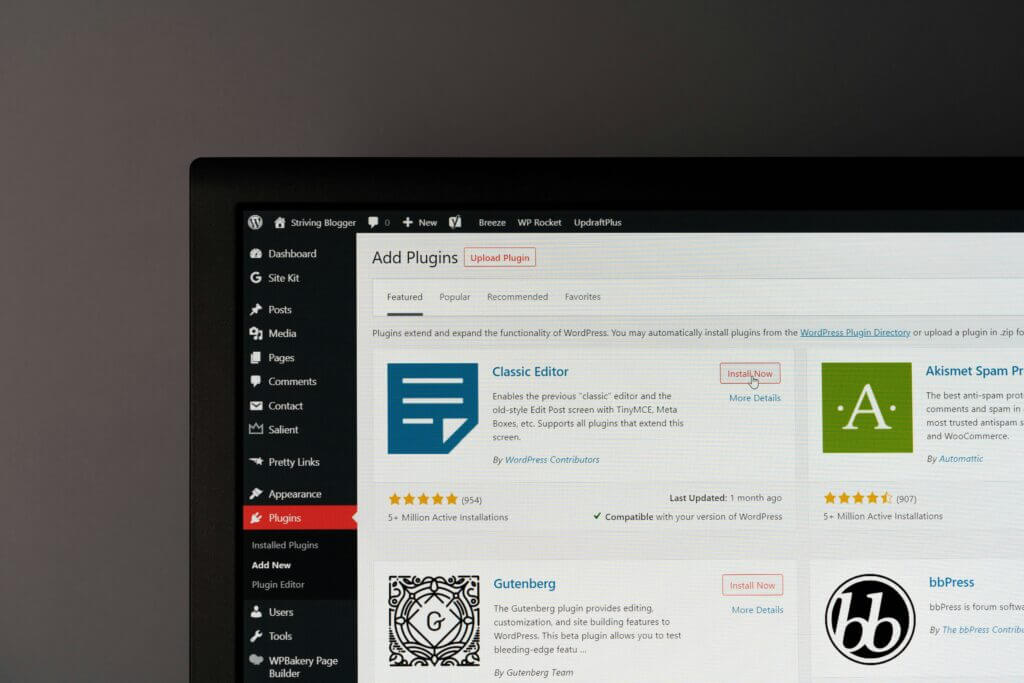
Few events disrupt a digital workflow faster than updating a plugin or switching a theme, only to watch your website break down, your checkout form freeze, or your administrative dashboard turn completely blank.
Because WordPress relies on an open ecosystem where thousands of independent developers write code following different standards, plugin and theme conflicts are inevitable. A theme might expect a specific JavaScript library to load globally, while a plugin might deregister it to save bandwidth. Two distinct plugins might attempt to hook into the exact same database filter, triggering a fatal PHP error.
Instead of guessing blindly or deleting extensions at random, this engineering guide provides a systematic, production-tested framework to isolate, diagnose, and permanently resolve WordPress conflicts without downtime.
The Root Causes of WordPress Code Collisions
Understanding why conflicts happen makes troubleshooting significantly faster. Most collisions fall into three distinct technical categories:
- PHP Function and Class Redefinition: If a poorly coded plugin or theme tries to declare a function or class name that already exists in WordPress core or another plugin, PHP halts execution with a fatal error.
- JavaScript Library Inferences: Modern themes and page builders bundle specific versions of jQuery, React, or custom scripts. If a plugin injects an incompatible script version, it breaks frontend interactions, sliders, and form submissions.
- Database Hook Priority Clashes: Actions and filters (
add_actionandadd_filter) modify data flow. If two plugins modify the same data query with conflicting priorities, unexpected outputs or database lockouts occur.
Before diving into live troubleshooting, always spin up a safe testing copy. Never debug live production sites directly; follow our safe deployment practices outlined in ➡️ How to Safely Update & Test WordPress Websites Using Staging Environments.
Step 1: Isolate the Conflict Using the Process of Elimination
When a conflict occurs, your primary goal is narrowing down the culprit from thousands of possibilities down to a single file.
1. Check the Browser Console for JavaScript Errors
If your front-end layout is broken (e.g., buttons don’t click, menus don’t expand, or page builder elements fail to load), the issue is usually a frontend script collision:
- Right-click anywhere on your site and select Inspect.
- Navigate to the Console tab.
- Look for red errors referencing specific plugin directories (e.g.,
wp-content/plugins/broken-plugin-name/). If a script is failing, you have your primary suspect.
2. The Systematic Deactivation Protocol
If the entire site crashes or the dashboard becomes inaccessible, you must perform a clean isolation sweep:
- Log into your server via FTP or hosting File Manager.
- Navigate to
wp-content/plugins/. - Rename the
pluginsfolder toplugins_temp(this instantly deactivates every plugin on the site without deleting any data). - Check your website. If the site loads, a plugin was causing the conflict.
- Rename the folder back to
plugins, go inside it, and rename individual plugin directories one by one, refreshing your site after each toggle until the error returns.
Step 2: Addressing PHP Fatal Errors and Theme Collisions
If disabling plugins does not resolve the issue, the conflict is likely originating from your active theme or a deeper version mismatch.
When a theme’s functions.php file clashes with a core update, it frequently triggers a complete system crash. To replace bloated, conflicting plugins with lightweight, custom code hooks, manage your functions safely following guidelines in How to Add Custom Features in WordPress Using Code Snippets (No Plugins).
If you are evaluating how modern layout engines and themes interact with the DOM without creating script overhead, review our comparative analysis in Elementor vs Gutenberg in 2026: Which WordPress Builder Is Better?
Step 3: Checking for Malicious Injections and Security Failures
Occasionally, what appears to be a plugin conflict is actually a result of unauthorized script injection or compromised core files. If unexpected scripts or redirects appear across your admin panel, immediately review our comprehensive security protocol in How to Secure Your WordPress Site Against Brute Force & Malware Attacks.
Step 4: Mitigating Performance and SEO Impact
Unresolved conflicts and bloated script queues directly degrade your server response times and crawler efficiency. Once you resolve a collision, ensure your site speed and search rankings remain fully optimized by reviewing How to Speed Up a WordPress Website: Complete Optimization Guide and auditing your indexing setup with ➡️ WordPress SEO Guide: Complete Beginner Optimization Checklist.
If your site runs multiple languages or regional subdirectories, ensure translation plugins are not conflicting with core rewrite rules; learn more in How to Create Multi-Language WordPress Websites (Polylang vs WPML). For those building an infrastructure from scratch, reference the foundational principles in WordPress Beginner Guide: How to Build Your First Website.
Frequently Asked Questions (FAQ)
Can two plugins conflict even if they are both updated? Yes. Even fully updated plugins can conflict if they attempt to modify the same database table or handle the exact same data hook using incompatible logic.
What should I do if a paid plugin causes a conflict and the author won’t reply? Check your server error logs to isolate the exact PHP file and line number causing the error. If it’s a minor syntax or hook priority issue, a developer can often adjust it locally via a custom filter snippet.
Does switching default themes fix most layout conflicts? Switching to a default WordPress theme (like Twenty Twenty-Four) instantly reveals whether your custom theme is responsible for the layout breakage.
Master Complete WordPress Architecture & Advanced Troubleshooting
Resolving plugin and theme conflicts requires a disciplined, engineering-first approach to database management, server logs, and clean code architecture.
To build, maintain, and troubleshoot professional WordPress websites without guesswork, downtime, or bloated troubleshooting cycles, you need to master:
- Systematic Debugging: Isolating PHP errors, error logging, and staging workflows.
- Pro Workflows & Clean Code: Custom code snippets, database optimization, and environment management.
- Speed Optimization & Caching: Eliminating script bloat and asset queue bottlenecks.
- Security & Stability: Hardening environments against unexpected script injection and parser failures.
Our WP Flow Mastery WordPress eBook provides an actionable, production-tested framework to launch, scale, optimize, and manage professional WordPress websites with absolute confidence.
➡️ Download the WP Flow Mastery eBook and master your workflow today.
Written by Nemanja Stosic
WordPress Developer & Website Optimization Specialist
Nemanja helps businesses and freelancers build, optimize, and maintain professional WordPress websites focused on performance, SEO, security, and usability.